Showing posts with label stock management. Show all posts

Tuesday, 14 June 2016

How to create Sales Invoice in ERPNext?

A Sales Invoice can be simply defined as the request of payment by the customer for goods sold or services provided the seller. An invoice generally lists the description and the quantity of the item sold or service provided. The document is also a record of the sale for both the seller and the buyer.
Follow the below steps to create New Sale Invoice
1)To create Sales Invoice
Goto Accounts->Documents->Sales Invoice->New
or
You can create Sales Invoice from Delivery Note/Sales Order
mail77.png
In the above diagram you can see,you can create Sales Invoice by clicking right side Invoice button in Sales Order(it is same in Delivery Note also)
2)You can create Sales Invoice by pulling information from Sales Order/Delivery Note
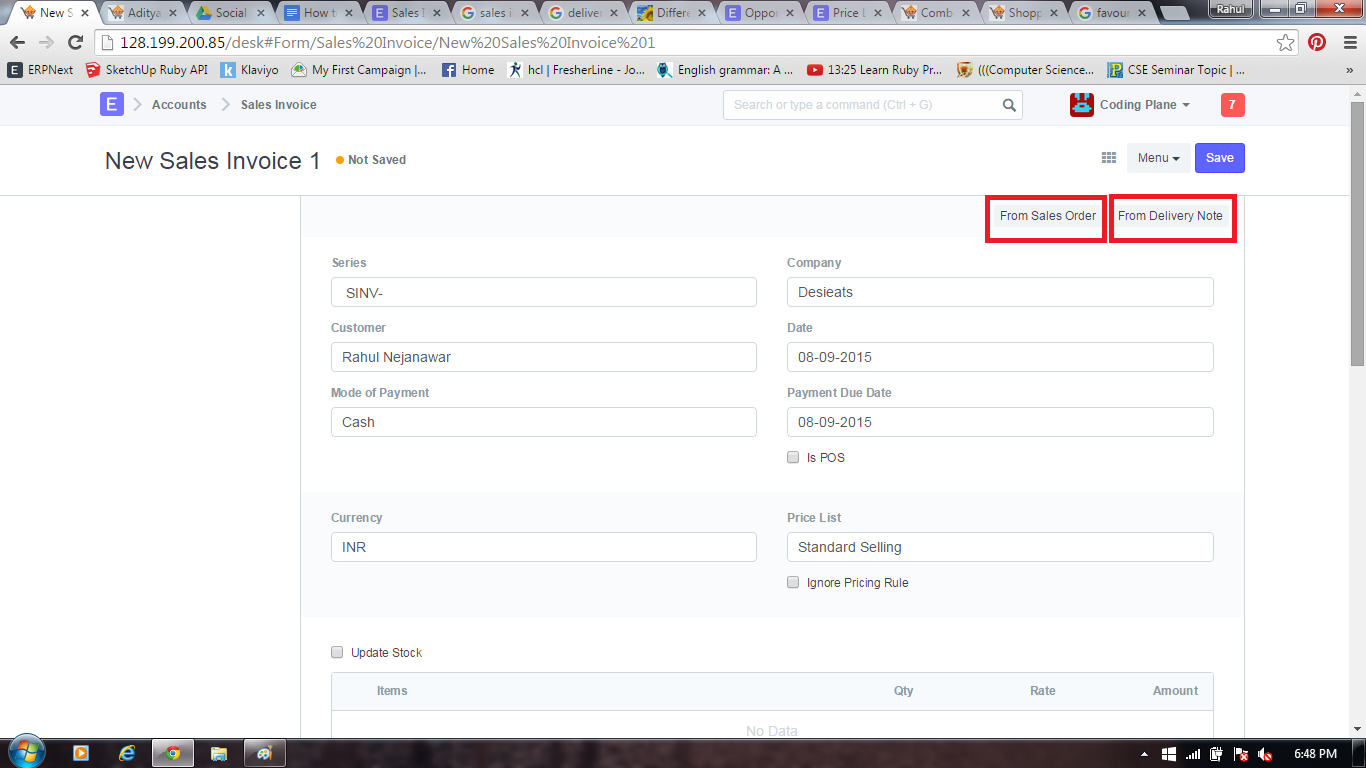
mail78.png
In the above diagram you can see,We can create New Sales Invoice From Sales Order/Delivery Note.
3)You can also create Sales Invoice directly by
goto Account->Documents->Sales Invoice
The Sales Invoice requires
-Customer Details like customer name
-Mode of payment like Bank,Cash,Cheque
-Payment Due Date means the due date is always indicated and means that the payment must be received on or before the specified date
-Currency and Price List
-Item Details like Item Name,Qty,Rate,Income Account(You can set income account for each row or you can set income account for item in Item Master),Cost Centre(in which income booked)
-Taxes and Charges like Vat,Service charges
-Sales Partner Details

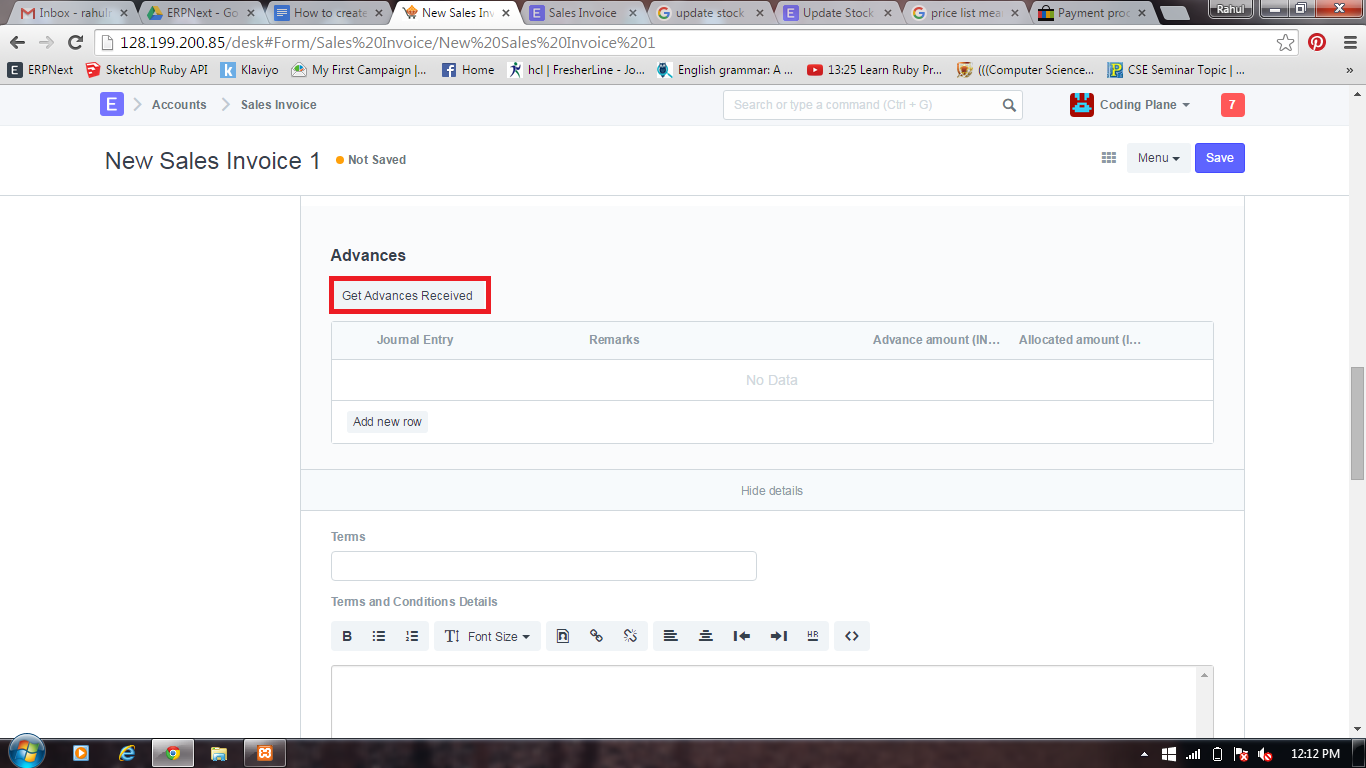
3)If you received advance amount for your sale then in Sales Invoice you can link that advances
mail79.png
In the above diagram you can see,By clicking Get Advances Received in advance field you can link advance payment Journal Entry to Sale Invoice.
4)Check Is Recurring in Recurring Invoice if you have contact with customer where you can bill on monthly,quarterly,annual basis.In the recurring invoice you add details about how frequently you send bill to your customer and the period for which your contract is valid. And ERPNext will automatically create new invoices and mail it to the mail ids you set.
mail80.png

5)After entering all data Save and Submit the Sales Invoice

What will happen after submitting Sales Invoice ?
-Sales Must be booked against Income Account. So that Income Account will be credited and Customer Account(Debtors) will be debited.You can check Accounting Ledger for that Sales Invoice by clicking Accounting Ledger in the right side of sales invoice.
mail81.png


How to create Purchase Invoice in ERPNext?

Purchase Invoice is the bill that your supplier sends you for the products or services delivered or A purchase invoice is an itemized statement of the goods or services provided by a vendor or supplier. indicates the quantity and price of each product or service provided or to be provided.
Follow below steps to create Purchase Invoice in ERPNext
1)Goto Accounts->Documents->Purchase Invoice->New
or
You can create Purchase Invoice by clicking Invoice in Purchase Order/Purchase Receipt
or
You can create Purchase Invoice by clicking/importing From Purchase Order/From Purchase Invoice in New Purchase Invoice
mail60.png
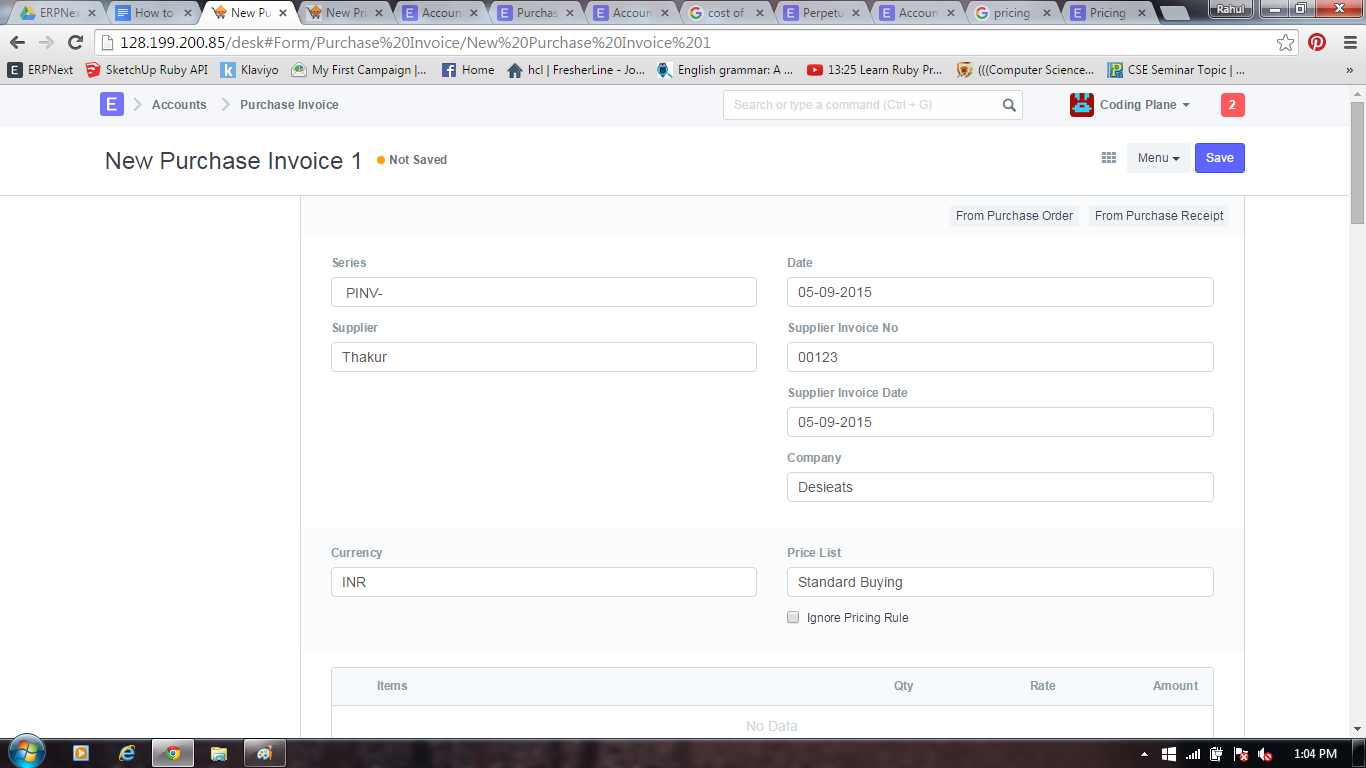
In the above diagram you can see, we are going to create Purchase Invoice via Accounts->Documents->Purchase Invoice->New
Here you enter all the details of supplier like Supplier Name,Supplier Invoice No,Supplier Invoice Date etc
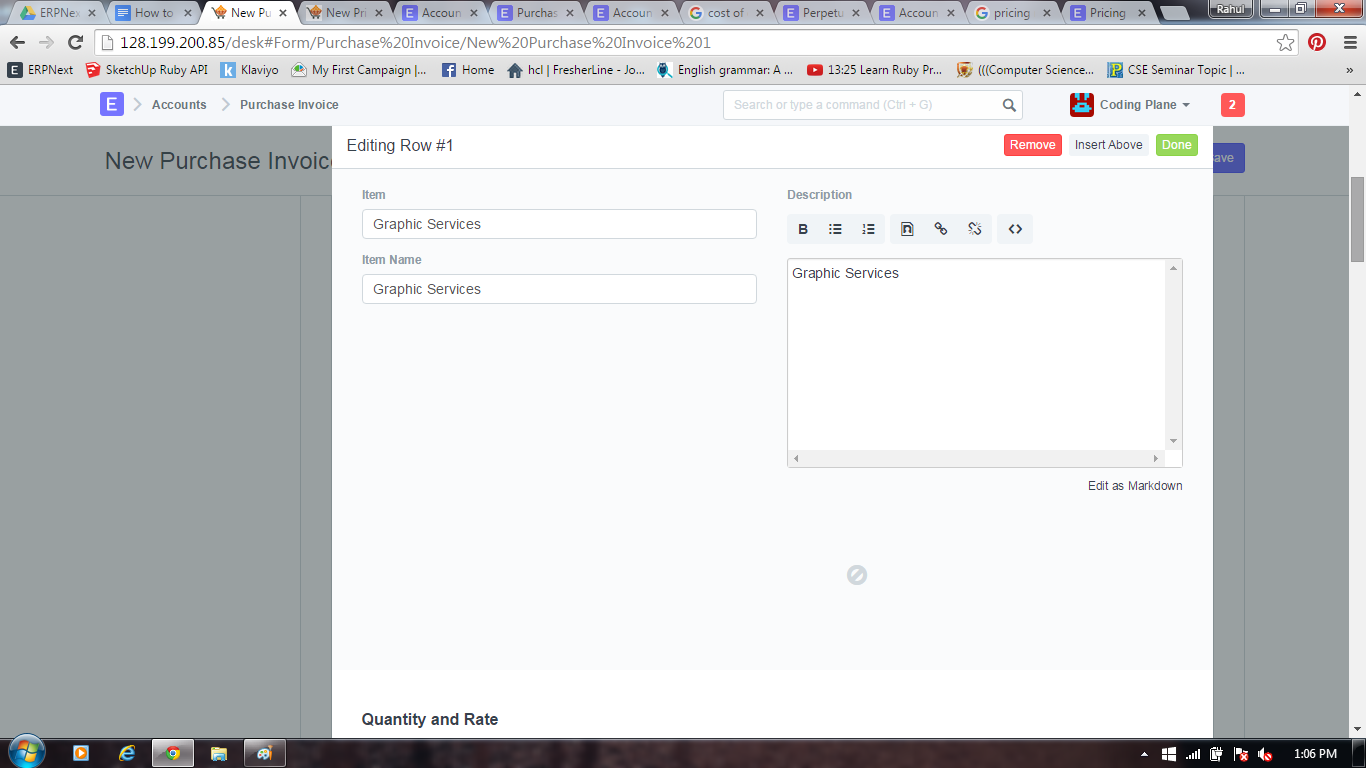
2)In the Item field add Item details as shown in below diagram
mail61.png
After that enter Quantity and Rate for Item
mail62.png
In the above diagram you can see, in the Accounting we have to add Expense Head/Expense Account Head
Expense Head-Expense Account is an arrangement under which money spent in the course of business.In the above digram you can see we added expense account head for item Graphic Services is Graphic Service - DE. Here Graphic Services is a service item so that we created separate expense account head for that.You can create separate account head for your service items.
If item is a stock Item and you are generating Purchase Invoice from Purchase Order/Purchase Receipt then no need to choose Expense Account Head because ERPNext will automatically
select Expense Account Head for stock items ie it will select Stock Received But Not Billed as expense account head in Purchase Invoice.
3)Add Tax value in Taxes and Charges field
mail63.png
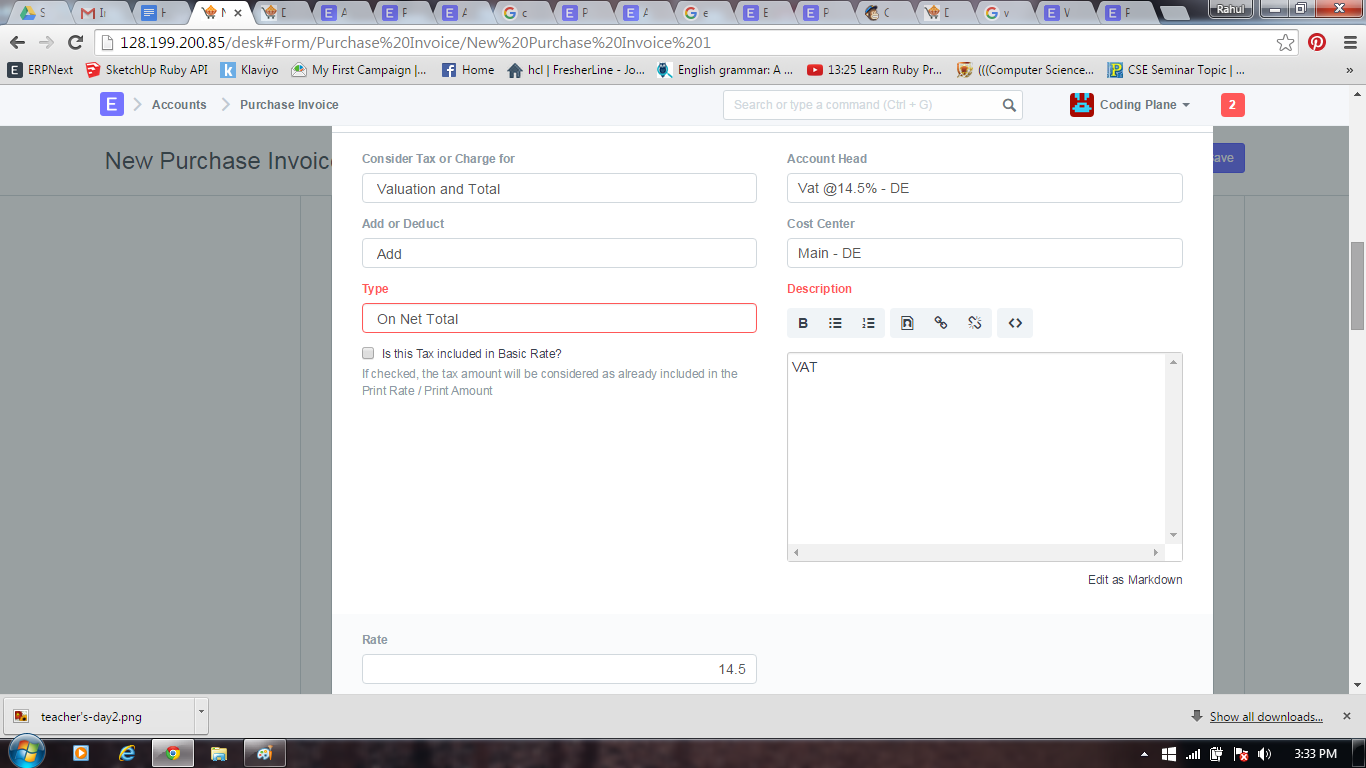
In the above diagram you can see how we added Taxes and Charges
Here you can select separate account head for taxes like Vat,Service tax,TDR
4)After adding all data in Purchase Invoice Save it and Submit.
After submitting Purchase Invoice check ledger to see how accounting entries are done
mail65.png
In the above figure you can see,How Accounting entries for Purchase will be made
Credit
Supplier account will be Credited(here account head is Creditors - DE)
Debit
Tax(VAT@5.5% - DE) and stock expense account(Stock Received But Not Billed - DE) will be Debited


What is ERP?

ERP is an acronym for Enterprise Resource Planning. ERP is business process management software that allows an organisation to use a system of integrated applications to manage the business and automate many back office functions related to technology, services and human resources.